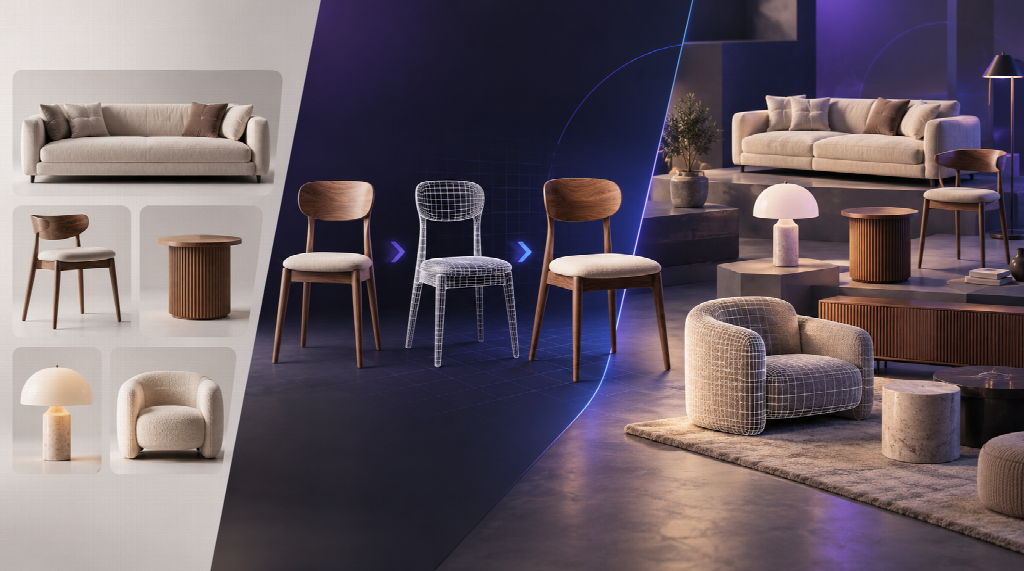
A catalog of 400 chairs, sofas and side tables has 400 product photos and, usually, zero 3D files. Commissioning each model from a freelancer costs days per item, and scanning every piece in a studio is rarely practical. This is the gap where a 2D image to 3D model workflow earns its place: it takes the photo you already own and returns a mesh you can inspect, texture and export.
N4D is built for exactly this kind of job. Its Image to 3D function runs on the in-house Direct3D-S2 architecture, which uses Spatial Sparse Attention to generate geometry natively in volume rather than stitching together many rendered views. For furniture teams, the interesting part is not the novelty but the output: a closed, watertight mesh with PBR textures that behaves predictably in a renderer. This article walks through where the approach fits, where it does not, and how to build a small, repeatable pipeline around it.
What Visualization Artists Actually Need From a Generated Asset
Anyone who has downloaded a free model for a scene knows the usual complaints. Shadows are painted into the texture, so the sofa looks wrong under your lighting. The mesh is a triangle soup with thousands of non-manifold edges. The file is 80 MB for a stool. A usable generated asset has to fix those three problems before it saves any time.
· Clean albedo: the base color should carry material information only, without baked-in shadows or highlights, so the asset stays relightable in V-Ray, Corona, Blender Cycles or a real-time engine.
· Stable topology: predictable polygon counts and a mesh without holes, so subdivision, UV work and boolean cuts do not break.
· Controllable weight: a polygon budget you choose in advance, not one you discover after export.
The Pipeline Matrix: Four Stations, Four Typical Failures
Instead of a feature list, it helps to look at the workflow as stations and ask what usually goes wrong at each one.
|
Station |
What you do |
Typical failure |
Countermeasure |
|
Photo |
Upload one clean product shot (PNG, JPG, JPEG or WebP, up to 20 MB) |
Cluttered background, strong wide-angle distortion |
Shoot a single object on a neutral backdrop from a slightly raised three-quarter angle |
|
Mesh |
Pick Triangle or Quad topology and a target polycount |
Too many faces for web, too few for close-up renders |
Quad with 1,000 to 100,000 faces for editing, Triangle with 100,000 to 500,000 for detail, 50,000 as the default |
|
Texture |
Generate PBR maps on the base mesh |
Expecting a textured result in the same time as the bare mesh |
Plan for roughly 90 seconds for the untextured mesh and more than two minutes for the full textured GLB |
|
Export |
Download GLB, OBJ, FBX, USDZ, STL or BLEND |
Wrong format for the destination |
GLB for web and AR, USDZ for Apple viewers, OBJ or FBX for DCC tools |
The timing row deserves attention. The 90 seconds refer to the base mesh only. A production file with textures takes longer, and that extra time is spent on material quality, not wasted.
Topology Decisions for Furniture
Furniture is a friendly category for generated meshes because most pieces are made of clear planes, gentle curves and repeated parts. The topology choice still matters.
For hero renders and close-up product shots, Triangle topology at a high polycount preserves stitching, wood grain relief and fabric folds. For assets that artists will edit, retopologize or animate, Quad-dominant output gives better edge flow around armrests and cushion edges. Pick based on what happens next in your pipeline, not on a habit.
A related point: the Remesh option on the model page is a separate tool that re-topologizes a model after it has been generated. It works on Triangle meshes and has its own face-count ranges, so it is not a substitute for choosing the topology at generation time.
Where Single-Image Reconstruction Reaches Its Limit
A single photo hides the back of a piece. The model has to infer it, and for a symmetric dining chair that inference is usually reliable. For a sideboard with a distinctive rear panel, it is a guess. Two ways to reduce the risk:
1. Use Multi-View to 3D when you have photos from six orthogonal directions. This removes much of the shape ambiguity and outputs a watertight mesh with PBR textures.
2. For large batches of simple pieces, use Batch Image to 3D, which accepts up to 10 images in one run and returns one model per image.
The same caution applies to scale. A photo carries no absolute dimensions. Scale every generated asset against a known measurement, such as seat height, before it enters a room scene.
“I stopped judging generated models by how pretty the preview looked. The only test that mattered was whether I could drop the file into the scene, change the lights and not see a dead shadow on the cushion.”
From Single Assets to a Working Library
Once the first ten models look right, the question becomes consistency. A small set of habits keeps a library coherent.
3. Photograph every product with the same background, height and angle, so the generator sees comparable inputs.
4. Fix one topology and polycount per asset class, for example Triangle at 50,000 for web viewers and a higher count for render-only hero pieces.
5. Check each file for a closed mesh, correct scale and clean albedo before it is added to the library.
Compression is a downstream step. If you publish GLB files on a product page, run them through your usual web optimization tooling for geometry and texture compression, then test the result on a mid-range phone.
Sharing and Reusing What You Build
Visualization work gets better when assets circulate. Reusable models, shared material setups and print-ready files save every team from rebuilding the same stool. Public libraries such as the DIY3D open model repository are a practical place to browse, publish and download community models, which is handy when a client wants a placeholder piece for an interior scene before the final product photo exists.
Inside the N4D platform, the Community feed lets you browse generated 3D models, images and videos from other users, and the Recreate button loads an original asset with its prompt and settings as a starting point. Keep in mind that Public generations may appear in that feed, while Private visibility is reserved for subscribers.
Licensing in One Paragraph
Assets generated under a paid plan carry full commercial usage rights. Content from the free plan is placed in the public domain, and N4D asks for attribution in commercial settings. Always check the current terms on the pricing page before shipping assets in a client project.
A Realistic Way to Start
You do not need to convert the whole catalog to find out whether the approach works. Pick five products with different materials, for instance a fabric sofa, a wooden chair, a glass-top table, a metal lamp and a woven basket. Shoot them to the same standard, generate each at the same topology settings and render all five under one lighting rig. Within an afternoon you will know which categories come out clean, which need Multi-View input and which still belong with a human modeler.
For teams who want to try that experiment, the starting point is the 2D image to 3D model function from N4D. Treat it as a fast first draft machine: it gives you a closed, relightable mesh in minutes, and your artists decide which draft deserves the final polish.